
Applications
An Application represents an API client that integrates with the Eagle Eye Networks Cloud. Applications are created and managed from a developer account and serve as the container for the identity and configuration needed to authenticate and interact with the EEN Video API Platform.
In practice, you’ll create an Application for each distinct integration you operate—such as a customer-facing product, an internal tool, or a partner service—so you can manage its lifecycle independently. This section explains how Applications are used, how they relate to Client Credentials, and the key decisions to make when setting one up (for example: how many Applications you need, when to separate environments like dev/test/prod, and how to manage multiple credential sets safely).
The same Application can be used by multiple end users, each authorizing it to access their own Eagle Eye Networks resources. This allows you to build multi-tenant integrations that scale across many customers while maintaining secure, isolated access to each user’s data.
Creating an Application
You can create a new application from the developer portal’s My Application page. From the dashboard, navigate to the Manage applications section and select "List applications".
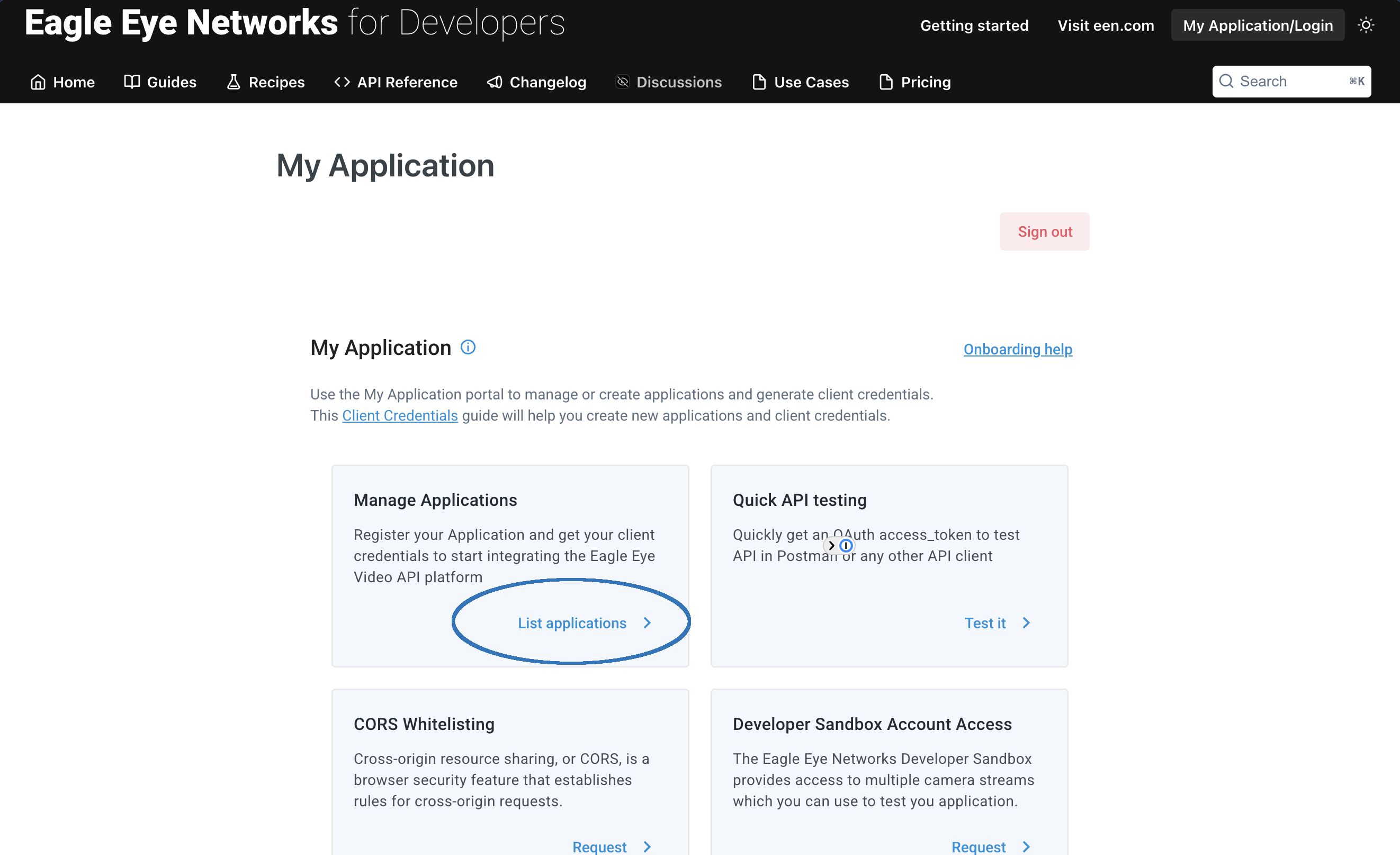
Once you reach the Application List, click the Add application on the top right to open the Application Creation form. Fill out the required fields, including the application name, application description, and your company name. Please also provide a technical contact email address where we can reach you to provided critical updates about the API.
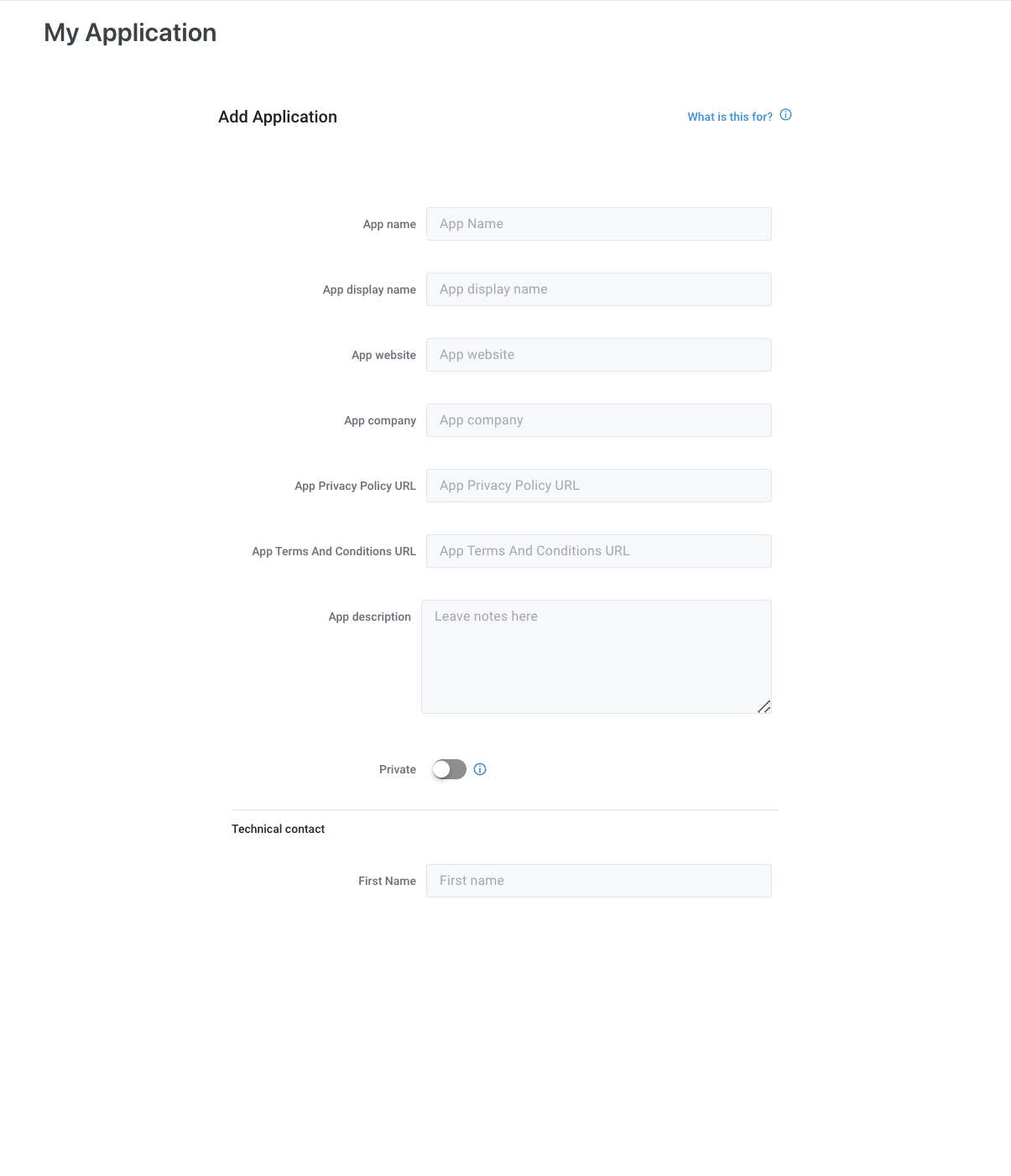
NoteIf you are integrating the Eagle Eye API with a mobile or web application that lacks a secure backchannel for storing access tokens, enable the Public toggle. Public Client Credentials only receive a temporary access token upon authentication.
For cloud or web applications with a secure backchannel, keep the Public toggle off. This will set the client credential type to Confidential, allowing you to receive both a refresh token and an access token after authentication. Store refresh tokens only on secure servers and never share them client-side.
Managing Applications
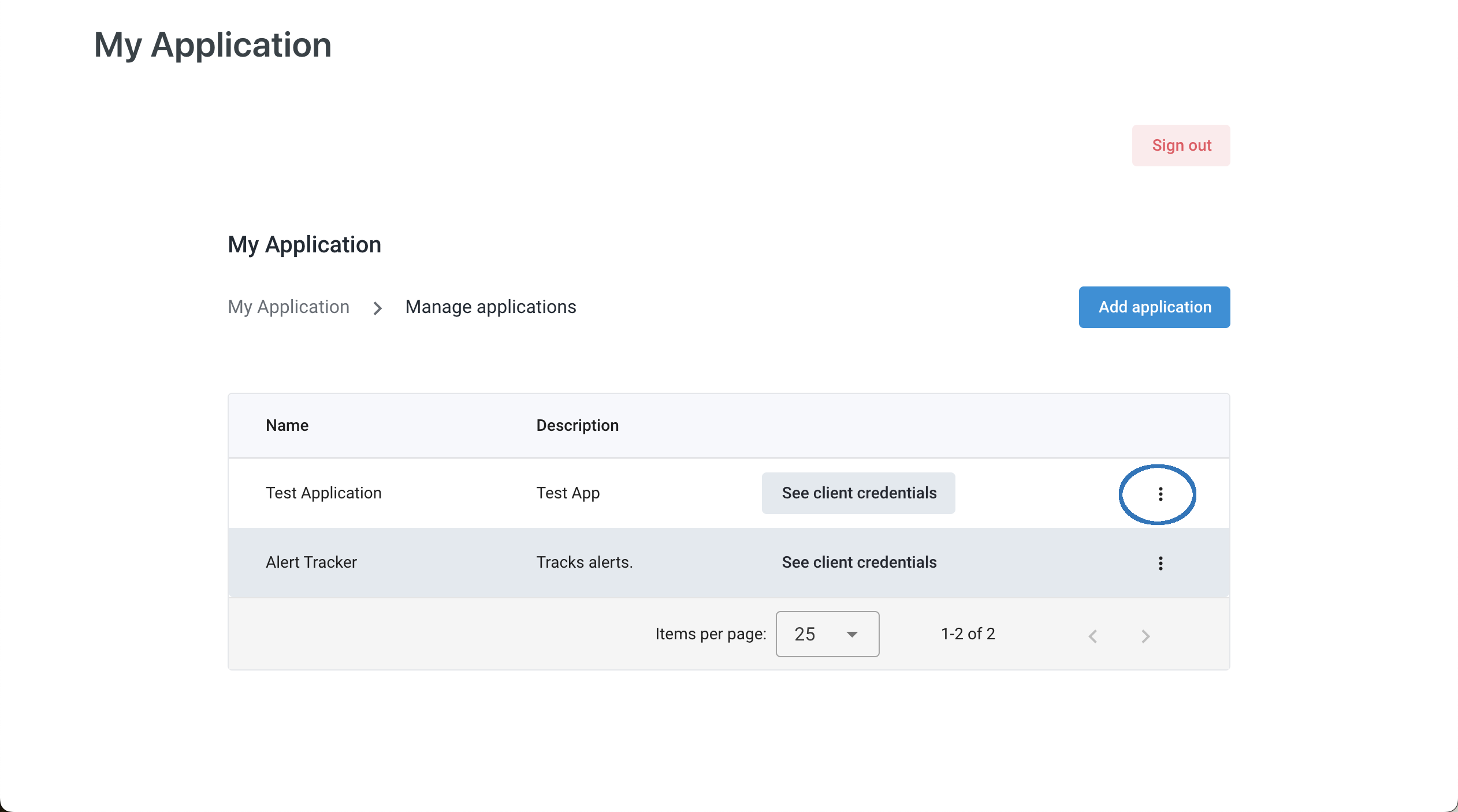
After creating an Application, you can view and manage it from the Application List. Here, you can see all your Applications, edit their details, and manage associated Client Credentials.
To edit the details of an application, click the three-dot menu next to the application name and select the Settings option. From here, you can update the application name, description, and other details as needed.
Updated 10 months ago